

What these settings control
- Whether headings, text, labels, buttons and cards rise into place as a section scrolls into view.
- Whether pictures fade in as a section scrolls into view.
How to access
1
Open the Theme Customizer
In your Shopify admin, open Online Store, then Themes, and click Customize next to Facet.
2
Open Theme settings
Click the Theme settings icon in the left sidebar.
3
Open Animations
Expand Animations.
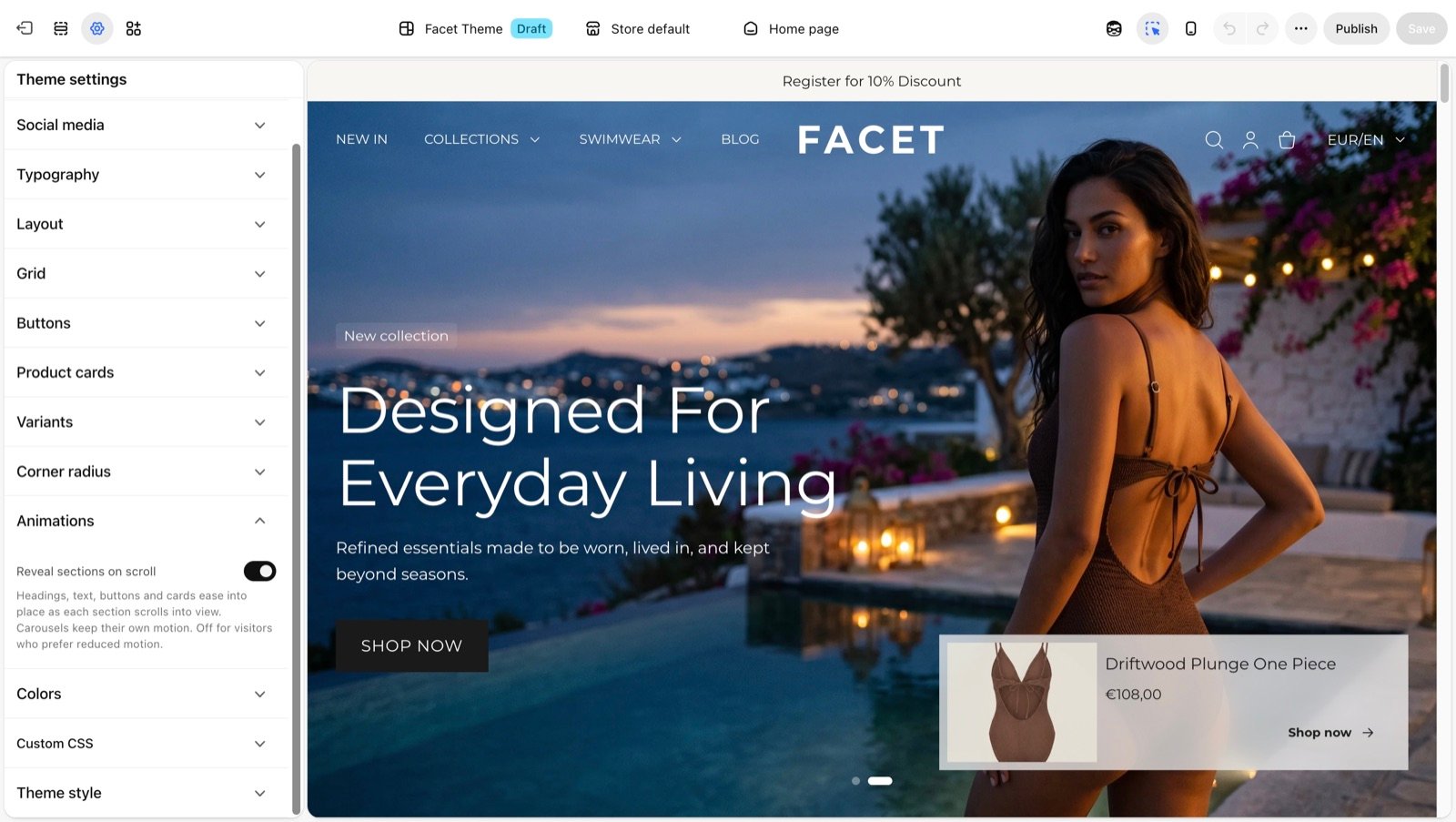
Animation settings
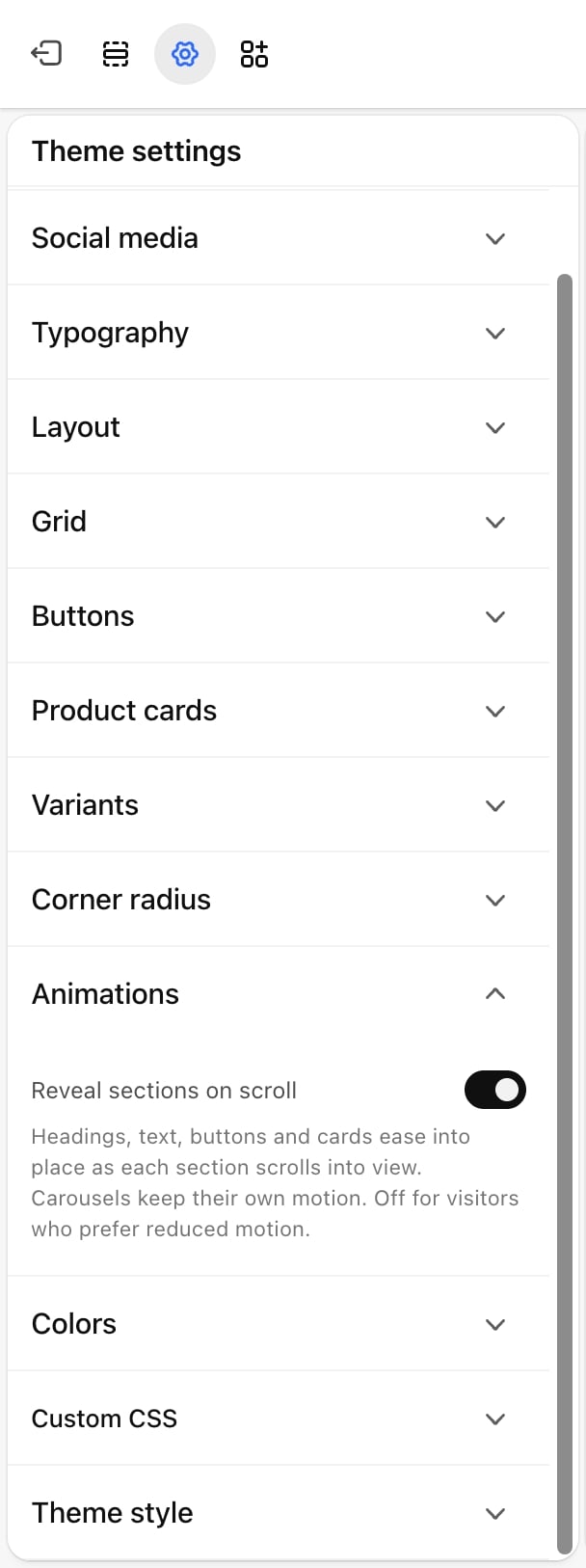
Reveal sections on scroll
Reveal sections on scroll
On by default. As each section comes into view, its pieces appear one after another:
- Headings, text, labels, buttons, product cards, collection cards, article cards, features, logos and testimonials fade in and rise a short distance into place.
- Pictures fade in where they are, quickly, so they never look slow to load.
What doesn’t reveal
- The header and the footer.
- The Hero banner, which has its own slide motion.
- Slides inside carousels. A carousel fades in as one piece and its slides keep their own motion.
Shoppers who turn on reduced motion in their device settings see every section in place, with no reveal, even when this setting is on.
Best practices
- Keep it on for editorial stores. The motion gives long home pages a sense of pace without slowing shoppers down.
- Turn it off for large catalogs. Shoppers scanning many products quickly may prefer every card to be in place at once.
- Check below the first screen. Sections on screen when the page opens play the motion straight away. Scroll the preview to see how the rest of the page arrives.
Related guides
Rich text
Use the section’s own text reveal on scroll.
Hero banner
Set the hero’s own slide motion.