

What this section controls
- The product shown.
- Whether the dynamic checkout buttons show.
- Which side the pictures sit on.
- App blocks under the buy buttons.
Getting started
1
Open the Theme Customizer
In your Shopify admin, open Online Store, then Themes, and click Customize next to Facet.
2
Add the section
In the Sections panel, click Add section and choose Featured product. The section can’t be added to the header or footer.
3
Pick a product
Click Featured product, then click Product and choose one from the product picker.
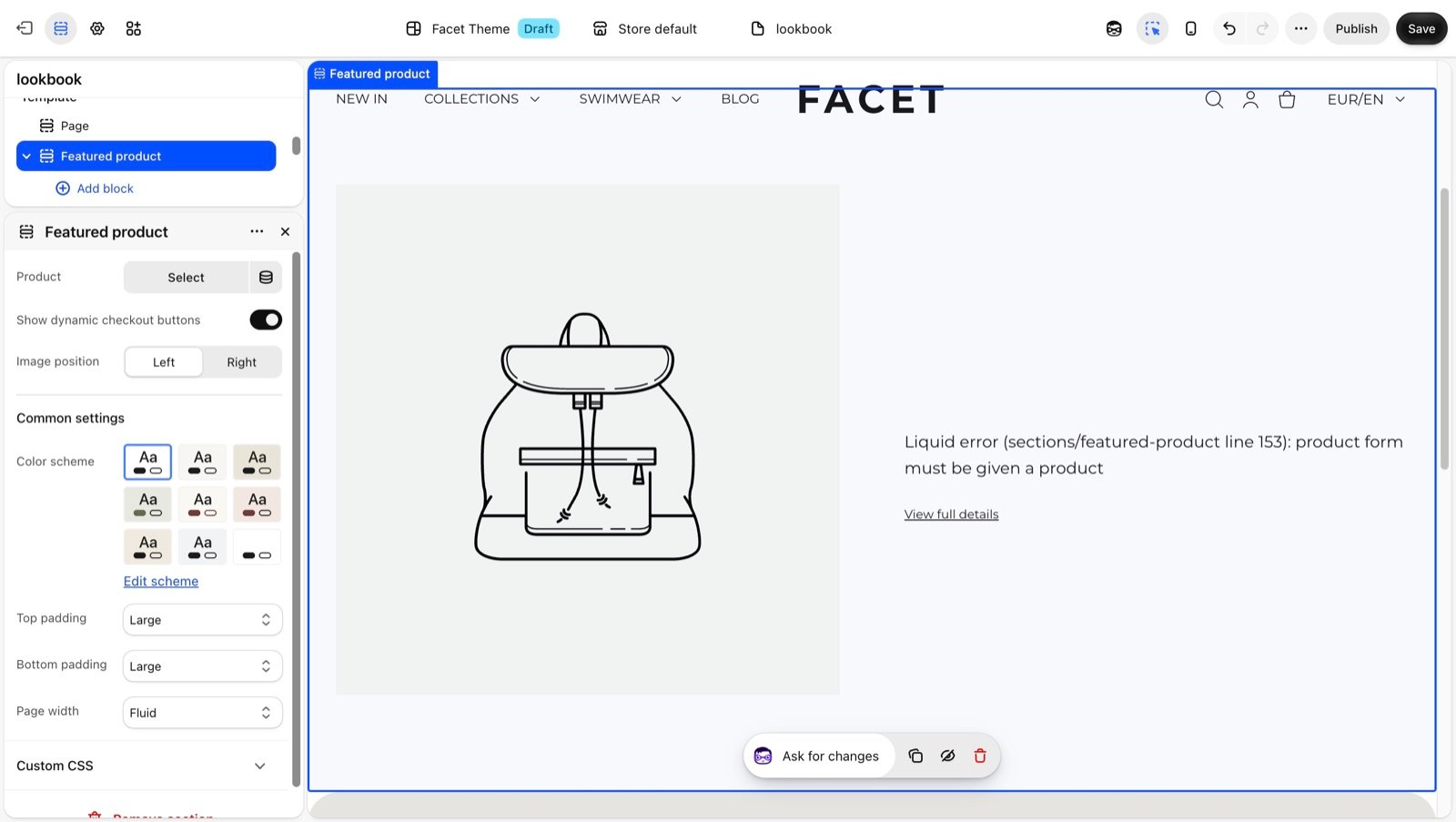
What shoppers see
- Pictures: up to 6 of the product’s media, one at a time, with previous and next buttons when there is more than one. When a shopper picks a variant that has its own picture, the gallery shows it.
- Title and price: the title links to the product page. The price updates with the chosen variant and shows the compare-at price when there is one.
- Options: one row of buttons per option, with swatches for option values that have a swatch color or image.
- Quantity and Add to cart: the button reads Sold out when the chosen variant can’t be bought. If the product can’t be added, for example because the shopper asks for more than you have in stock, the reason shows under the button, whether or not the dynamic checkout buttons are on.
- View full details: a link to the product page.
Section settings
Product
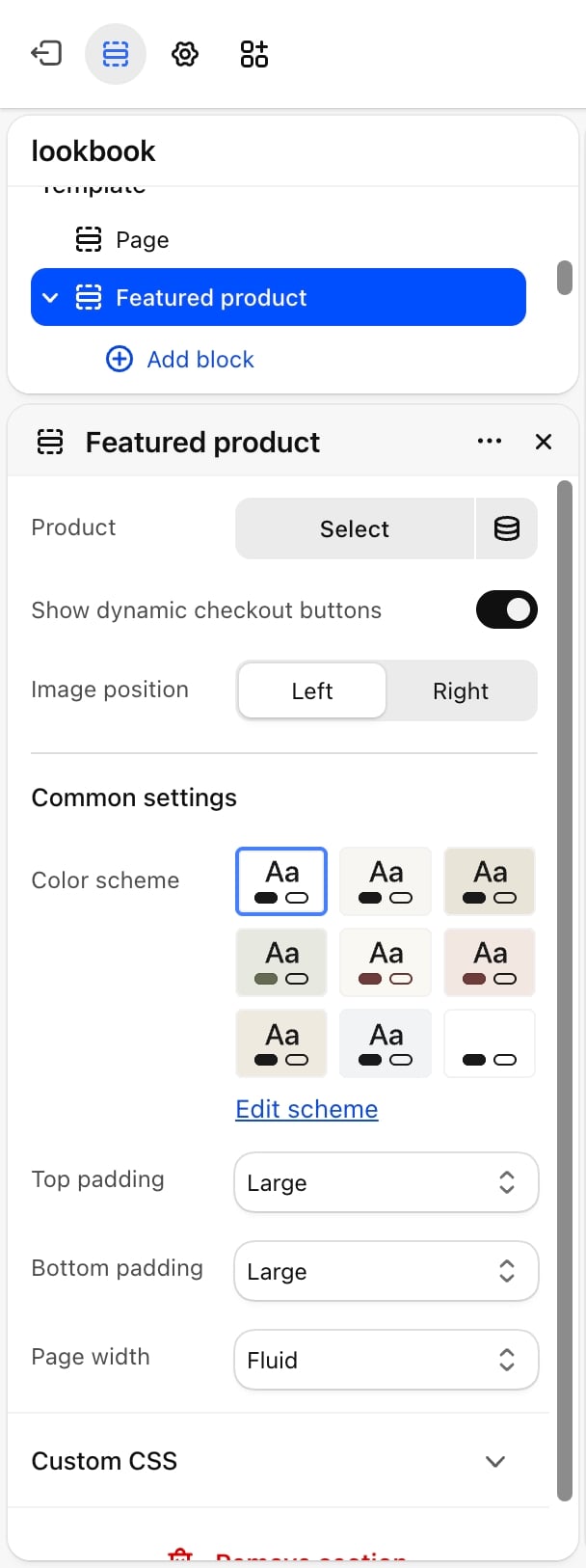
- Product: the product to show, chosen with Shopify’s product picker.
- Show dynamic checkout buttons: on by default. Shows Shopify’s express checkout buttons, such as Buy it now or a wallet button, under Add to cart. Which buttons show depends on the payment methods in your Shopify admin.
- Image position: Left (default) or Right. The side the pictures sit on, on large screens.
Common settings
See Common settings for details.- Color scheme: the colors of the section.
- Top padding and Bottom padding: None, Small, Medium, Large (default) or Extra large.
- Page width: Narrow, Narrower, Fluid (default) or Full.
Blocks
App blocks
The section accepts app blocks from apps you have installed, such as reviews or wishlists. Click Add block and pick one under Apps. App blocks show under the buy buttons, above View full details. Their settings come from the app.Best practices
- Put the best picture first. The gallery opens on the product’s first media, so order the media in your Shopify admin with the strongest picture first.
- Pick a product with stock. If every variant sells out, the section shows a disabled Sold out button. Swap the product when a launch or season ends.
- Give variants their own pictures. Shoppers then see the color or style they pick.
Related guides
Product page
Set up the full page linked from View full details.
Variants
Change how option values and swatches look.