

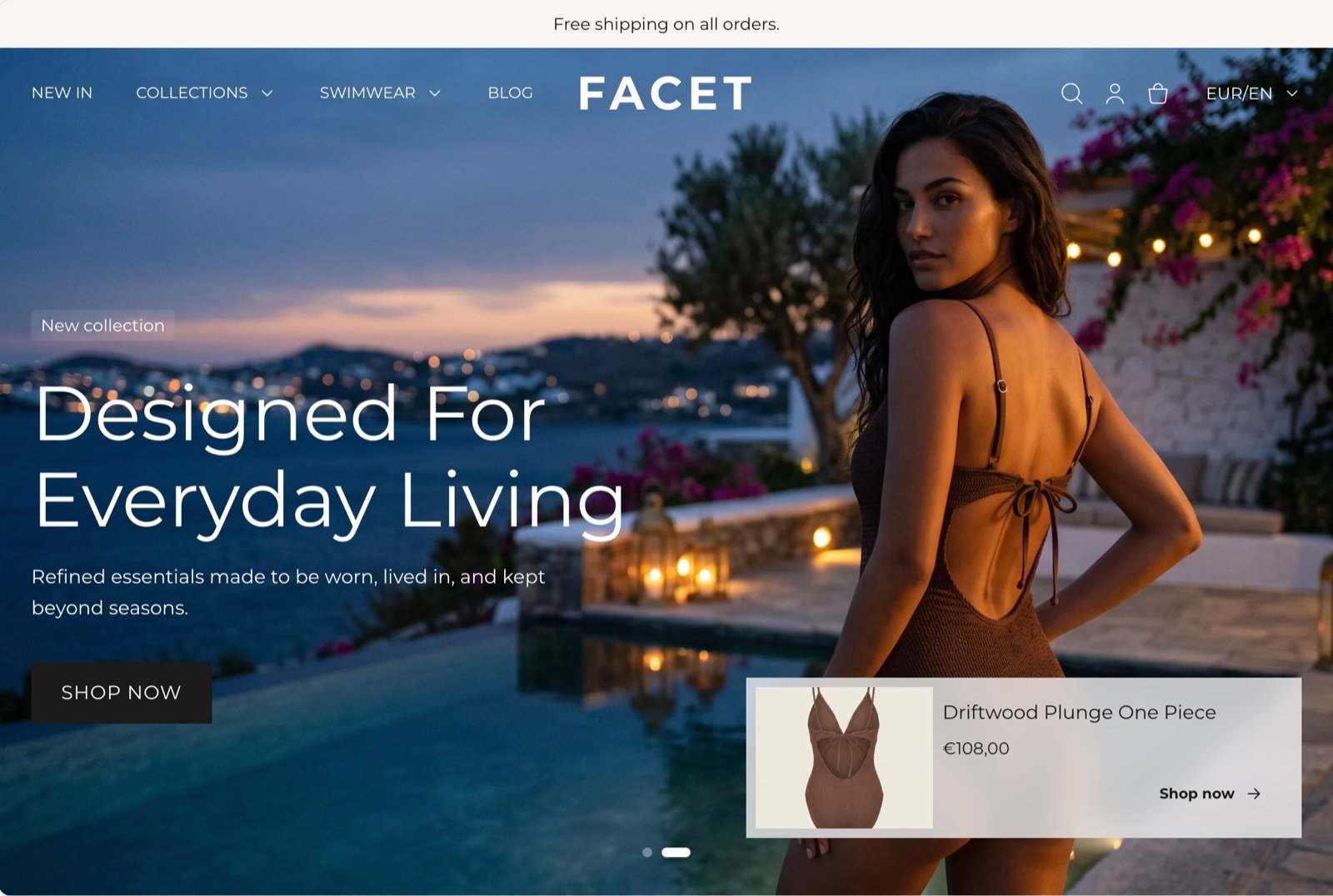
Open the Theme Customizer
You change everything in Facet from the Shopify Theme Customizer.1
Go to your themes
In your Shopify admin, open Online Store, then Themes.
2
Customize Facet
Next to Facet, click Customize.
3
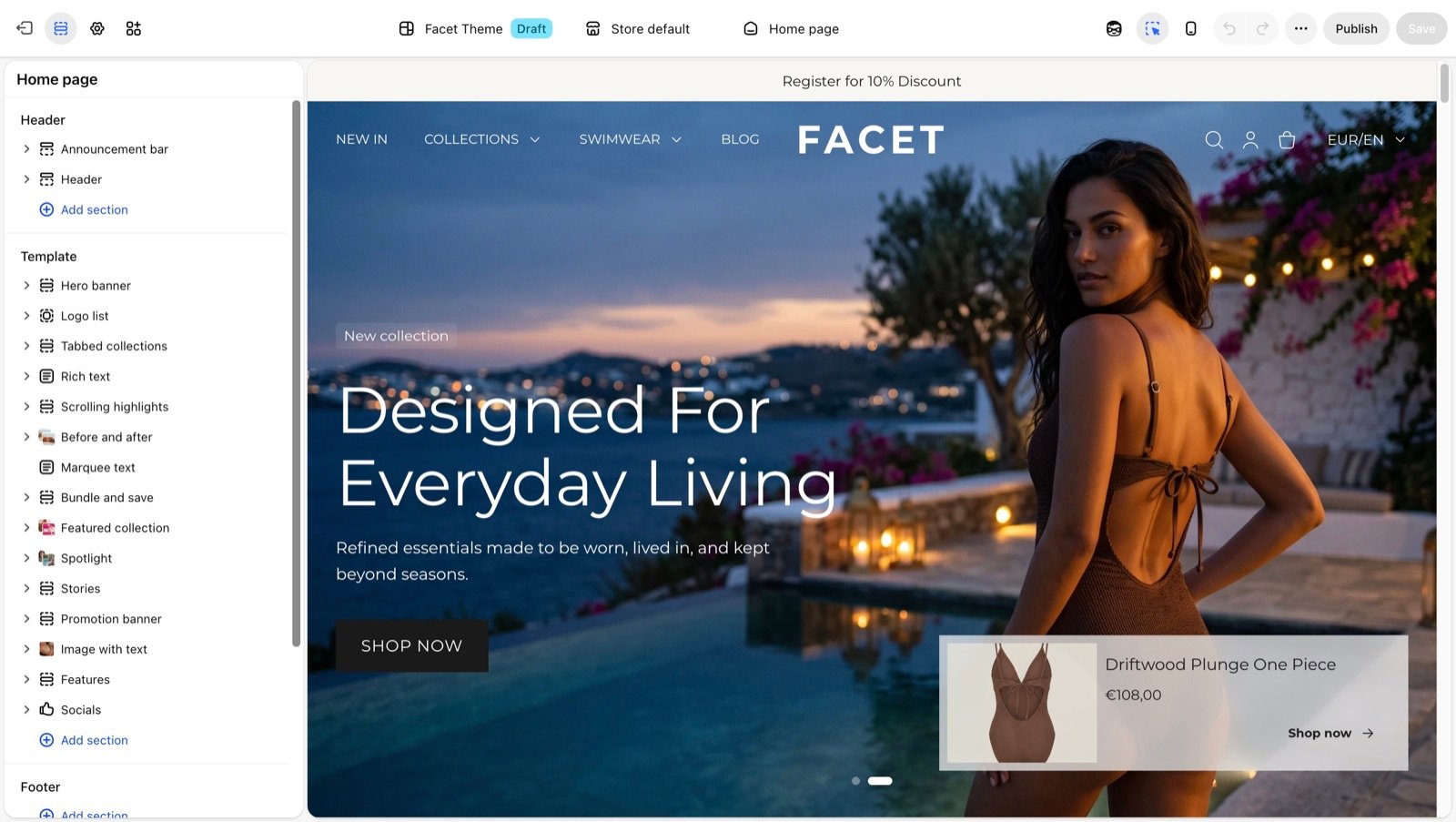
Pick what to edit
Use the Sections panel on the left to edit the page you are on, or open Theme settings to change store-wide styles such as colors, typography and buttons.
Explore the guides
Theme settings
Store-wide styles: colors, typography, layout, buttons, product cards and more.
Common settings
The spacing, width and color settings that most sections share.
Theme blocks
The headings, text, buttons, pictures and other blocks you build sections from.
Header
Announcement bar, logo, menus, mega menu, search, and the transparent and sticky header.
Footer
Menus, newsletter signup, brand text and the large footer logo.
Products
The product page, its blocks, and the gift card page.
Collections
Collection pages, filters and sorting, the collection list and search.
Pages and templates
Blog, articles, cart, contact, FAQ, password and customer account pages.
Sections
Every section you can add to a page, with its settings and blocks.