

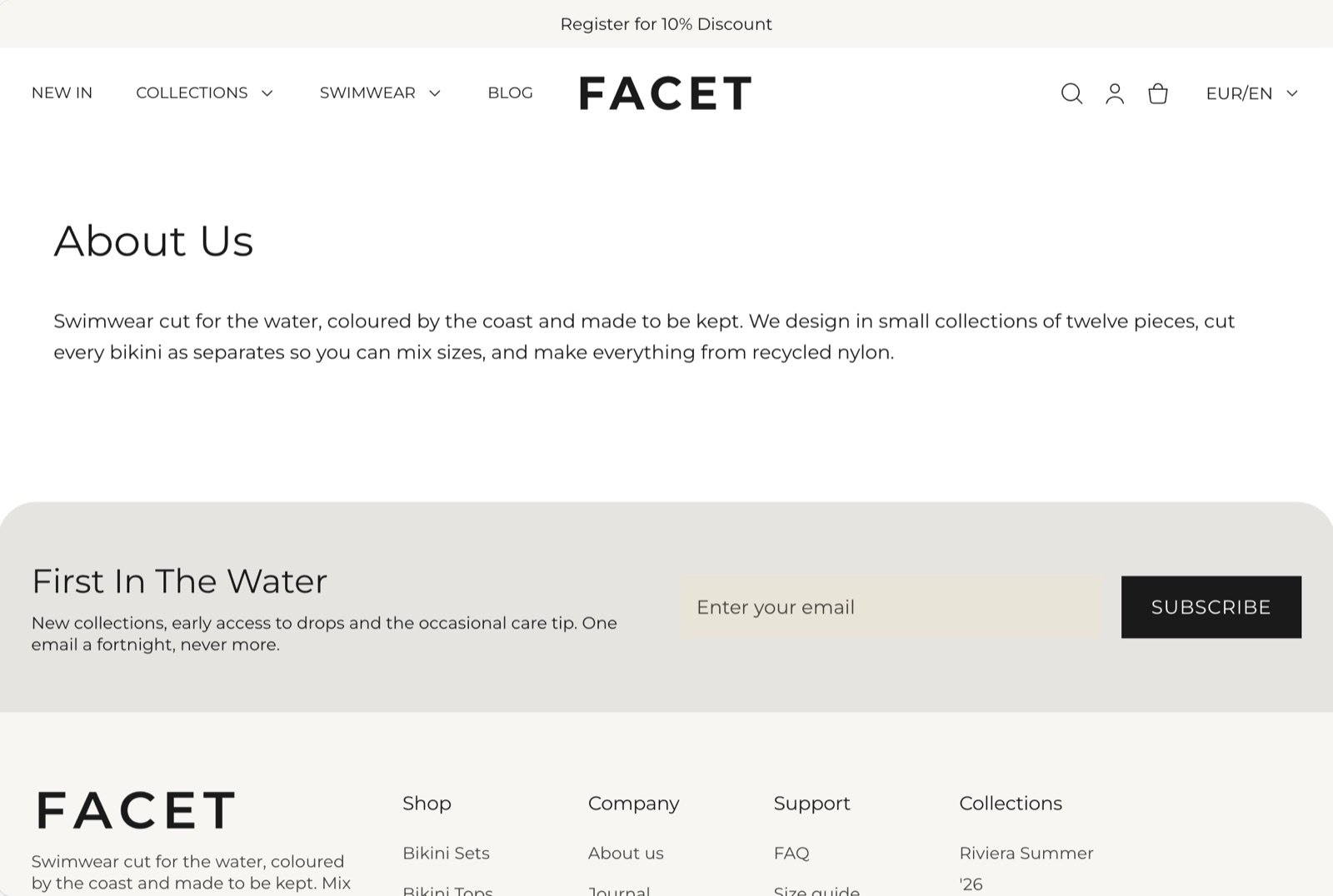
What this section controls
- Whether the page title shows.
- The colors, spacing and width of the text column.
Getting started
1
Open the Theme Customizer
In your Shopify admin, open Online Store, then Themes, and click Customize next to Facet.
2
Open the default page template
In the page selector at the top of the Customizer, choose Pages, then Default page. Click Page in the Sections panel.
3
Add sections if you need them
Click Add section to place more sections above or below the page text. They appear on every page that uses this template.
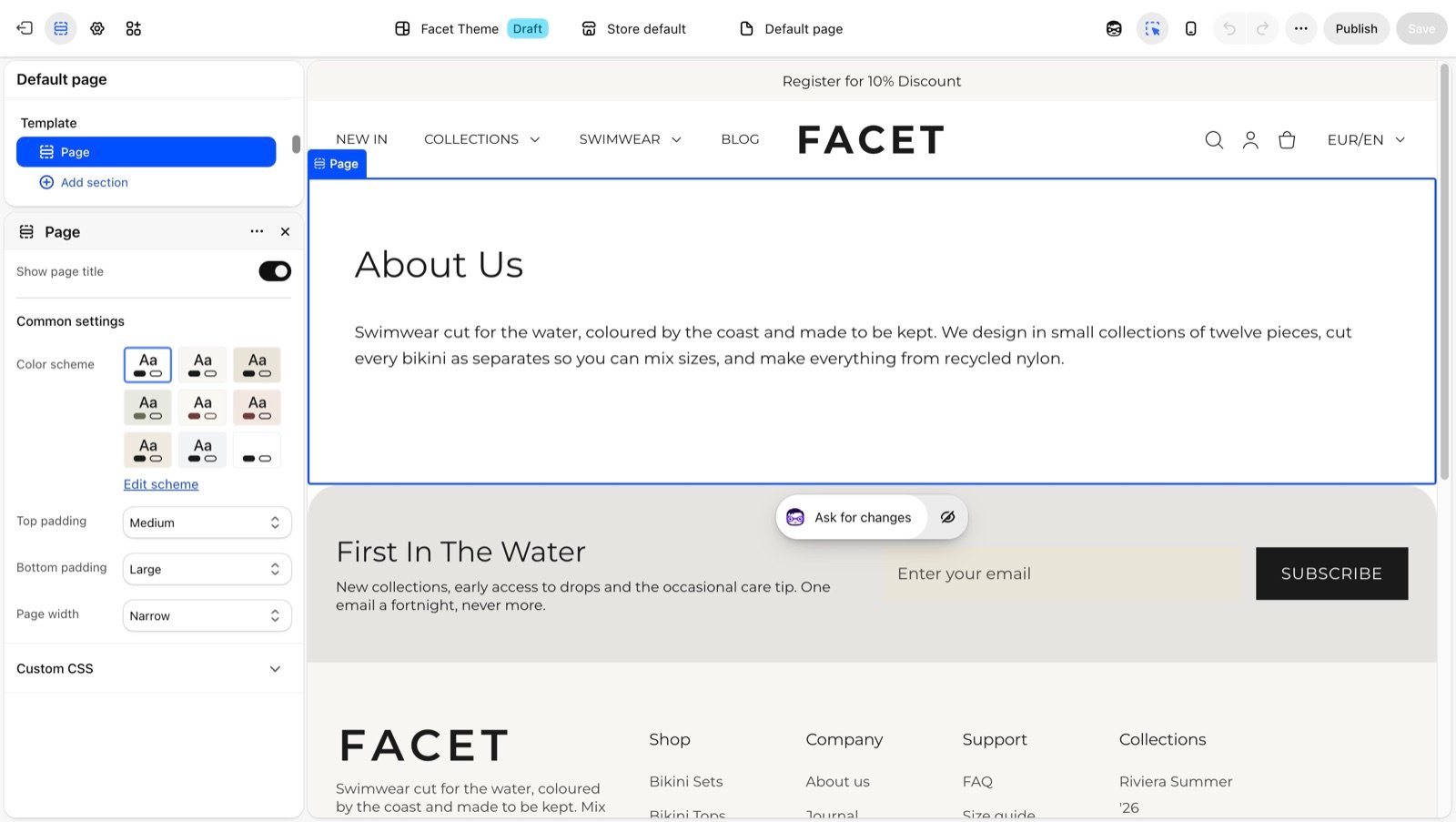
Section settings
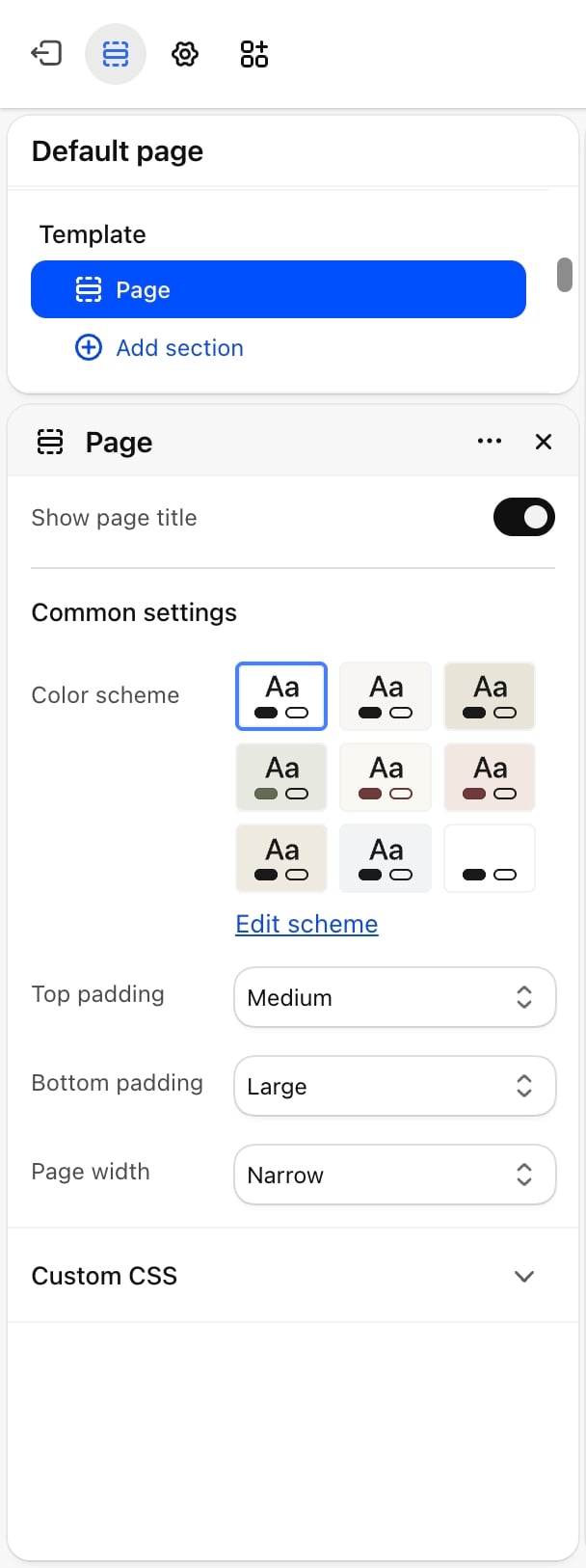
- Show page title: on by default. Shows the page title above the text. Turn it off when a section above already carries the title, such as a Page banner.
Common settings
These work the same in every section. See Common settings for details.- Color scheme: the colors of the page.
- Top padding: None, Small, Medium (default), Large or Extra large.
- Bottom padding: None, Small, Medium, Large (default) or Extra large.
- Page width: Narrow (default), Narrower, Fluid or Full.
Alternate page templates
Facet ships these templates next to the default one. To use one, open the page in your Shopify admin under Online Store, then Pages, choose it under Theme template and click Save.Best practices
- Keep policy pages narrow. The default Narrow width keeps long text easy to read.
- Use headings in your page text. Headings and lists you add in the admin editor are styled by the theme and break up long pages.
- Replace the sample content. The about and stores templates come with sample pictures, text and addresses. Change them all before you link the page.
Related guides
Page banner
Add a picture and title above your page text.
Store locator
List your shops on the stores template.