

What this section controls
- The Liquid, HTML or app snippet shown on the page.
- The colors, width and spacing around that code.
Getting started
1
Open the Theme Customizer
In your Shopify admin, open Online Store, then Themes, and click Customize next to Facet.
2
Add the section
In the Sections panel, click Add section and choose Custom Liquid.
3
Paste your code
Click Custom Liquid and paste your code into Liquid code. Check the preview, then save.
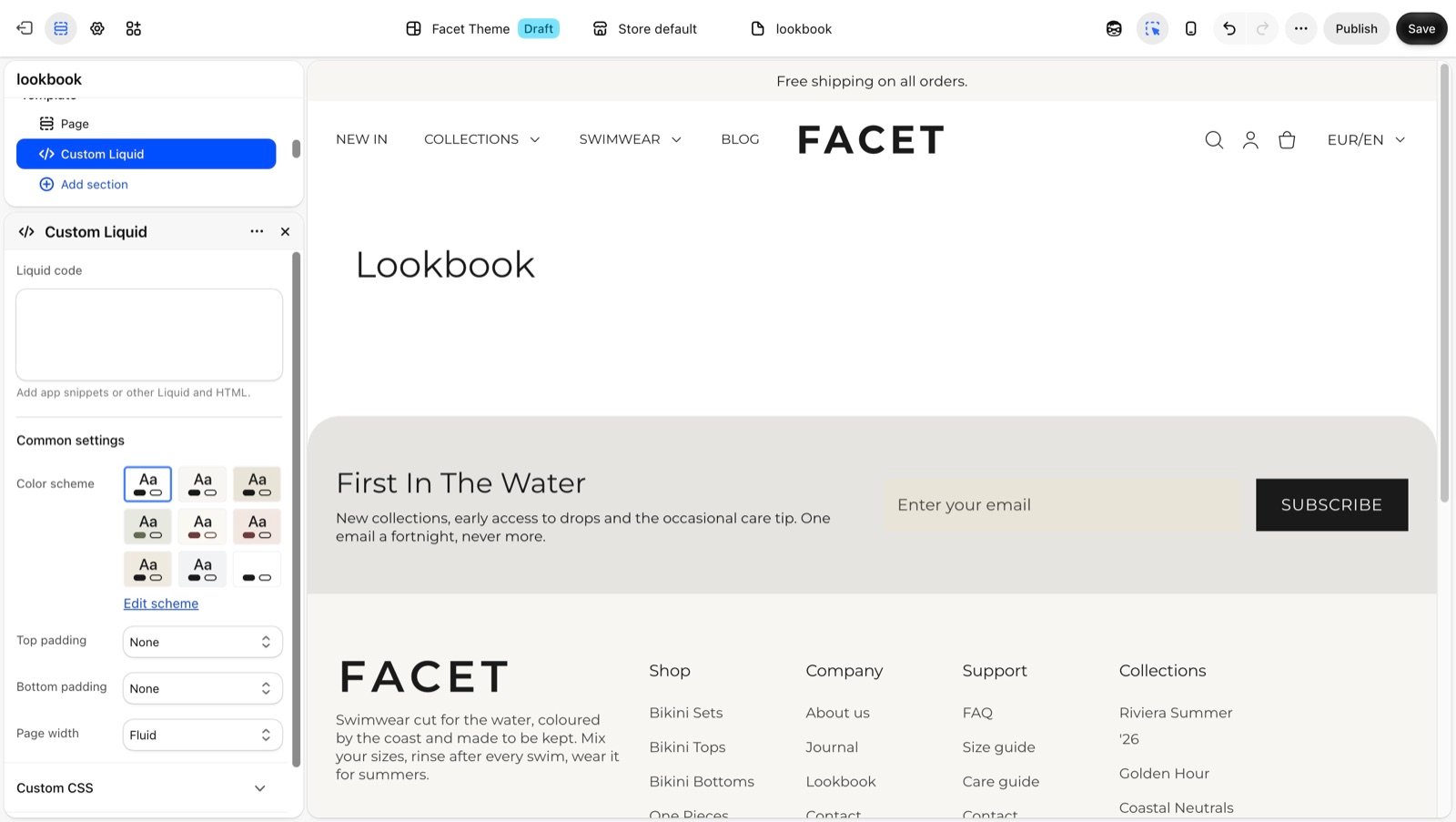
Section settings
Code
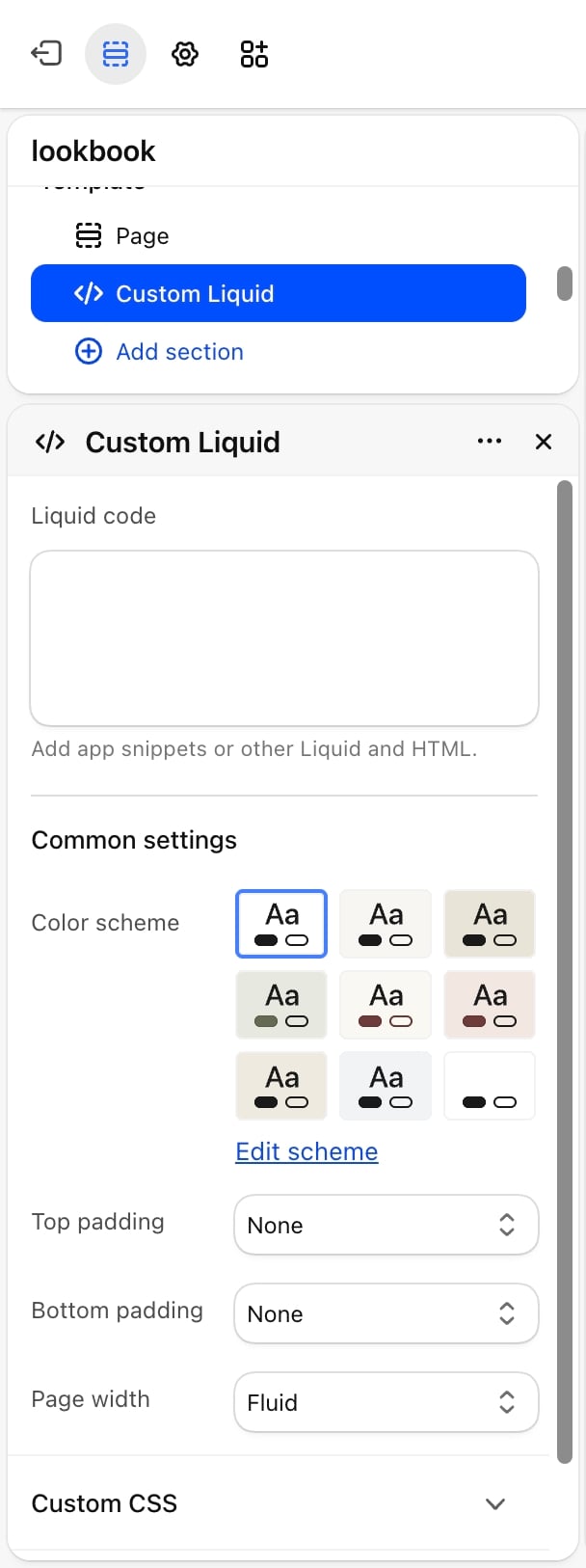
- Liquid code: app snippets or other Liquid and HTML. The code is placed on the page as you type it. Liquid in the field can read the same store data as the theme, for example
{{ shop.name }}, or{{ product.title }}on a product page.
Common settings
See Common settings for details.- Color scheme: the background and text colors around your code. Code that sets its own colors keeps them.
- Top padding and Bottom padding: None (default), Small, Medium, Large or Extra large.
- Page width: Narrow, Narrower, Fluid (default) or Full.
Best practices
- Prefer app blocks. If an app offers an app block or app embed, use that instead of pasting its code. The app maintains that code for you, so it keeps working when the app changes.
- Test on a copy. Duplicate your theme in Online Store, then Themes, add the code there, and check the page on desktop and phone before publishing.
- Keep a copy of your code. Save the code somewhere outside Shopify, so you can restore it if the section is deleted or edited by mistake.
- Add padding for plain text. The paddings default to none, so text and HTML sit right against the sections above and below. Pick Small or larger to give them room.
Related guides
Custom section
Build a section from theme blocks without code.
Common settings
How color scheme, padding and page width work.