

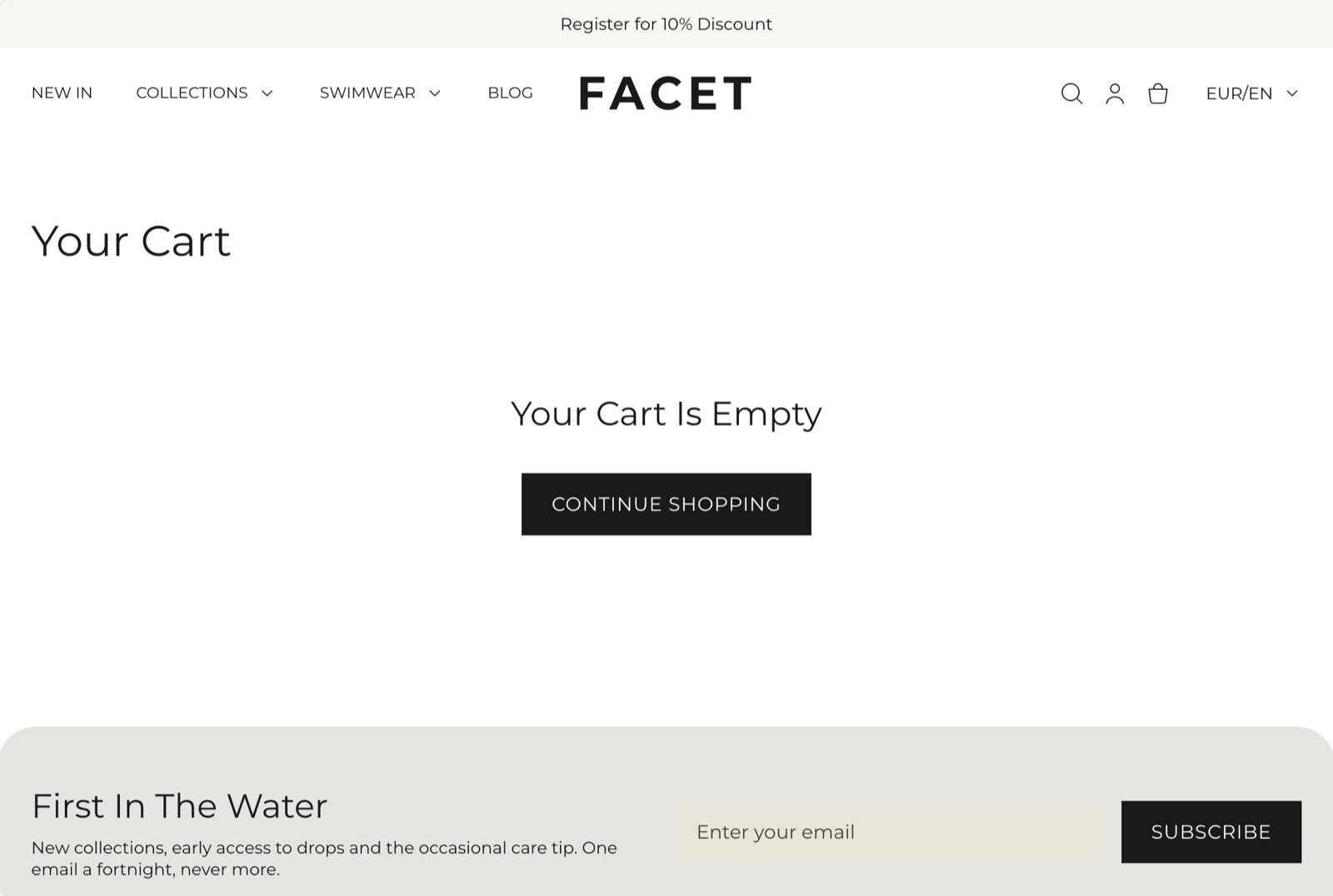
What this section controls
- The discount code field in the summary box.
- The order note field in the summary box.
- The continue shopping link and where it leads.
- The colors of the summary box.
- The colors, spacing and width of the page.
Cart page and cart drawer
Facet has no setting that picks between the cart page and the Cart drawer. While the Cart drawer section is on your store, the cart icon in the header and the add to cart buttons open the drawer, and its View cart button opens the cart page. If you hide or remove the Cart drawer section, the cart icon and add to cart buttons take shoppers to the cart page instead. On the cart page itself, the drawer stays closed: the cart icon opens the cart page, and adding a product updates the page.Getting started
1
Open the Theme Customizer
In your Shopify admin, open Online Store, then Themes, and click Customize next to Facet.
2
Open the cart page
In the page selector at the top of the Customizer, choose Cart. Then click Cart in the Sections panel. Add a product to your cart first to see the full layout.
3
Choose the fields
Turn the discount code and order note fields on or off, and pick where Continue shopping leads.
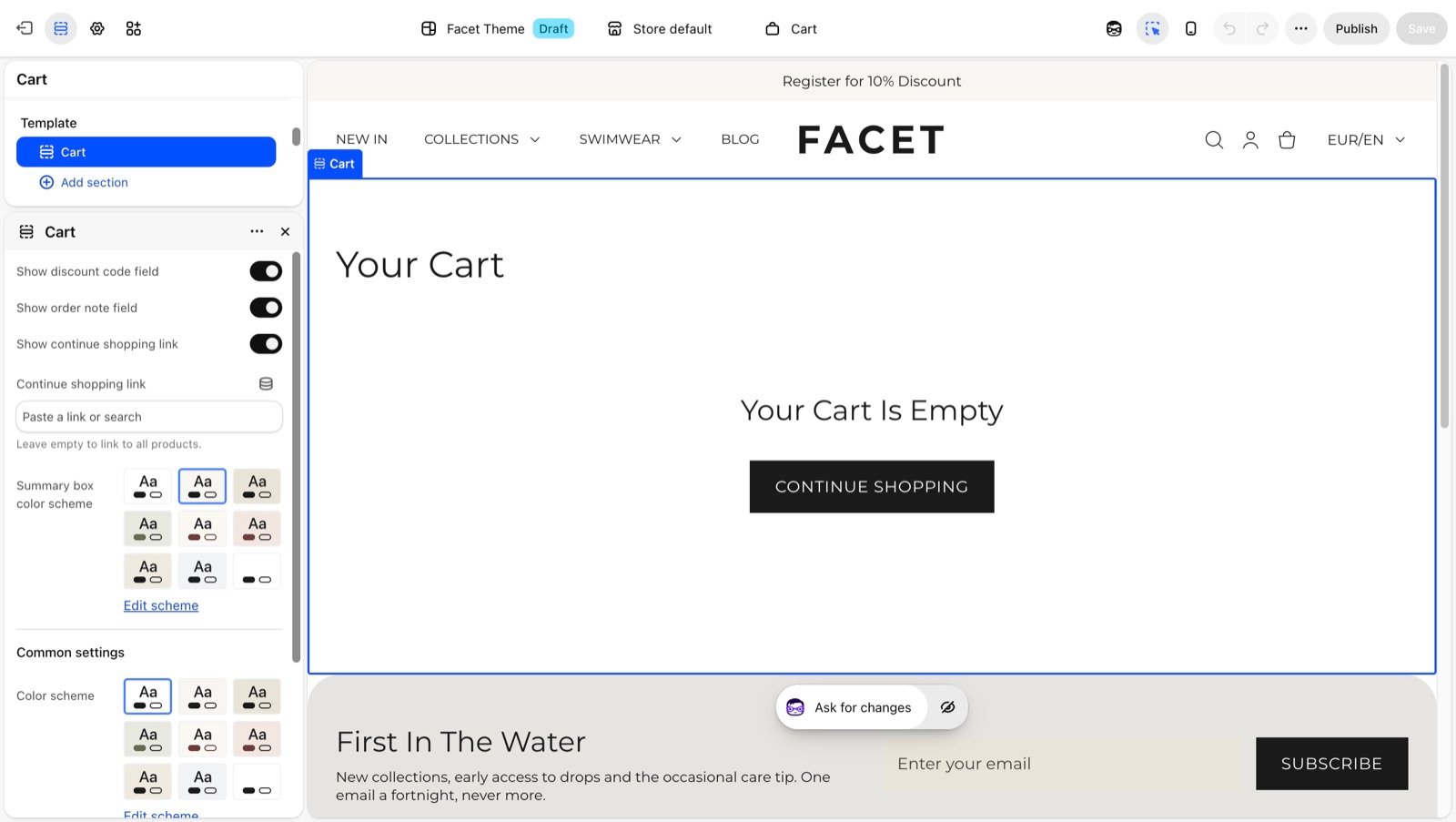
Section settings
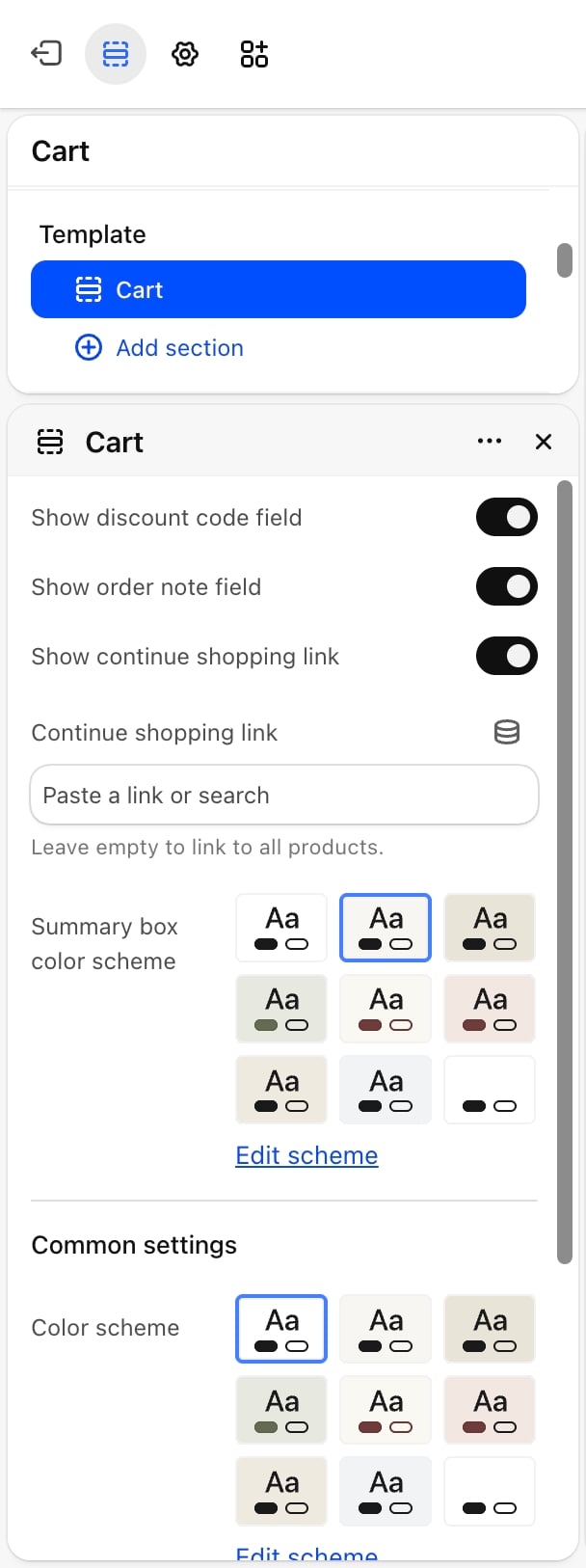
- Show discount code field: on by default. Adds a field with an Apply button to the summary box. Applied codes show as small labels the shopper can remove. A code that doesn’t apply shows an error.
- Show order note field: on by default. Adds a text box where shoppers can leave a note with their order, up to 250 characters. You see the note on the order in your admin.
- Show continue shopping link: on by default. Adds a Continue shopping link under the checkout button.
- Continue shopping link: where the link leads. Leave it empty to link to all products. Appears only when Show continue shopping link is on.
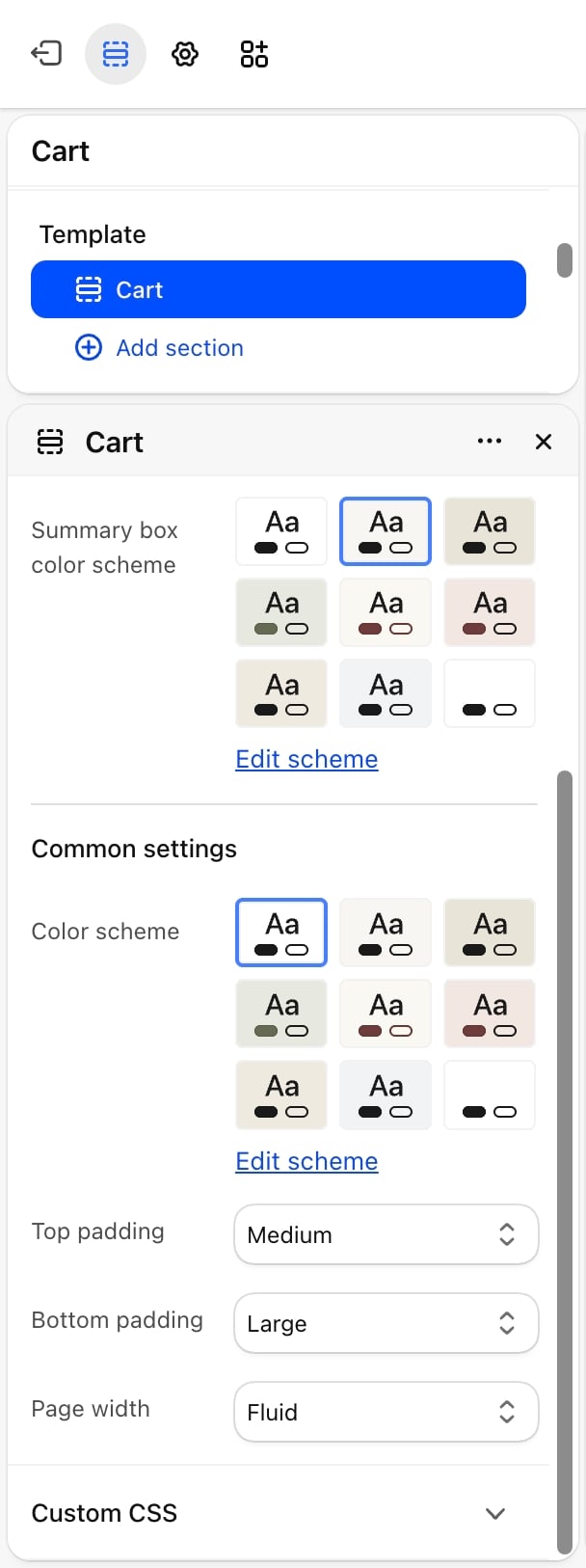
- Summary box color scheme: the colors of the box that holds the totals and the checkout button.
Common settings
These work the same in every section. See Common settings for details.- Color scheme: the page colors.
- Top padding: None, Small, Medium (default), Large or Extra large.
- Bottom padding: None, Small, Medium, Large (default) or Extra large.
- Page width: Narrow, Narrower, Fluid (default) or Full.
Best practices
- Pick a summary color that stands apart. A summary box in a different color scheme from the page makes the totals and the checkout button easy to find.
- Turn off the order note if you can’t act on it. Shoppers expect a note to be read. Leave it on only if your team checks notes before shipping.
- Point continue shopping at a curated collection. New arrivals or best sellers give shoppers a better next step than all products.
Related guides
Cart drawer
Set up the slide-out cart that opens from the header.
Colors
Create the color scheme for the summary box.