

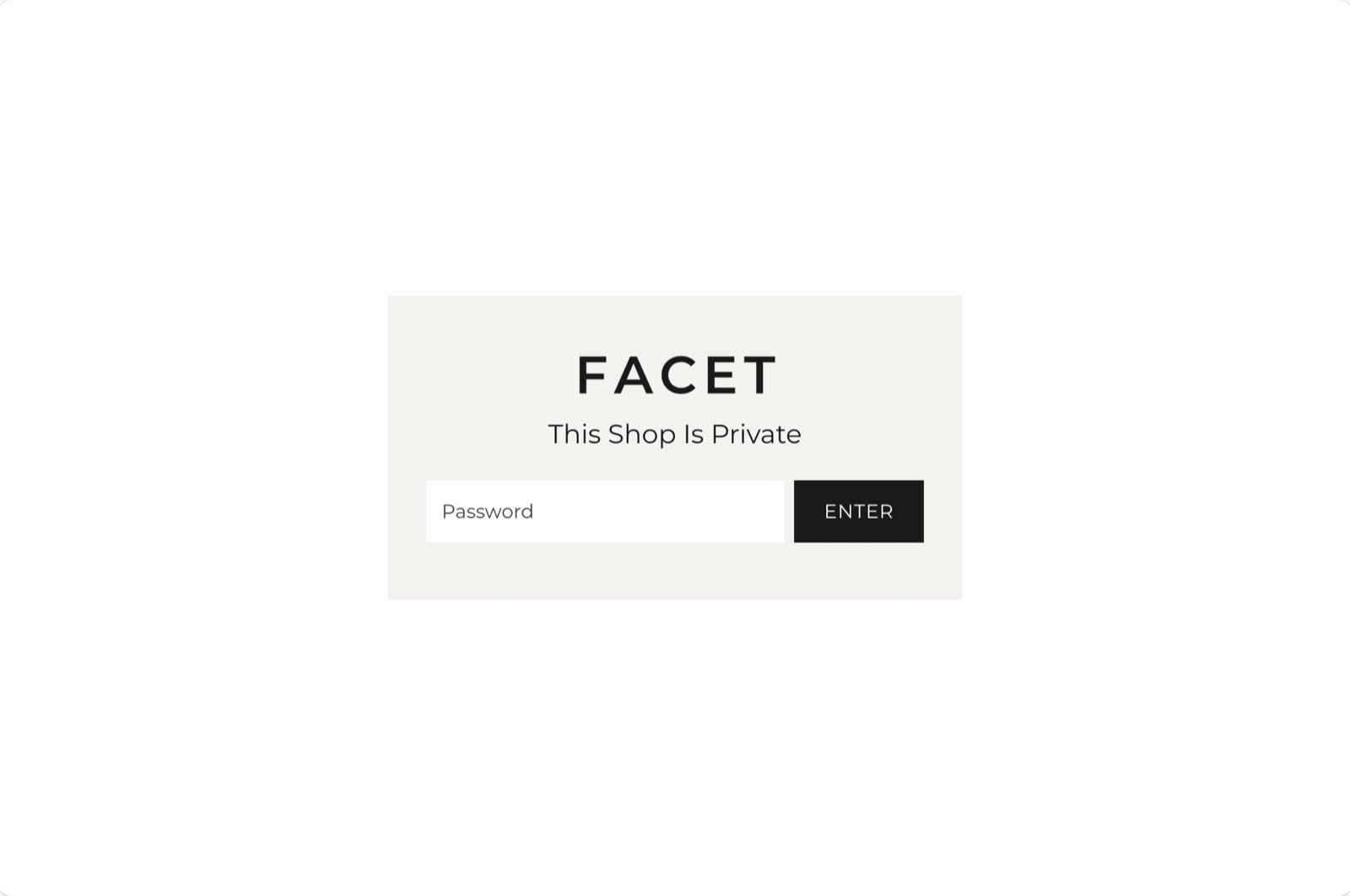
What the page shows
- Your logo, from the theme’s logo setting. Without a logo, the page shows your store name in text.
- The title “This shop is private”.
- Your message, the text you write in your Shopify admin. Without one, the line is left out.
- A password field with an Enter button. A wrong password shows an error above the field.
Getting started
1
Turn on password protection
In your Shopify admin, open Online Store, then Preferences. Under Password protection, turn on Restrict access to visitors with the password, set a password and click Save.
2
Write your message
On the same screen, fill in Message for your visitors, for example a launch date. Click Save.
3
Check the logo
In the Theme Customizer, open Theme settings, then Logo, and pick the logo the password page should show.
4
Preview the page
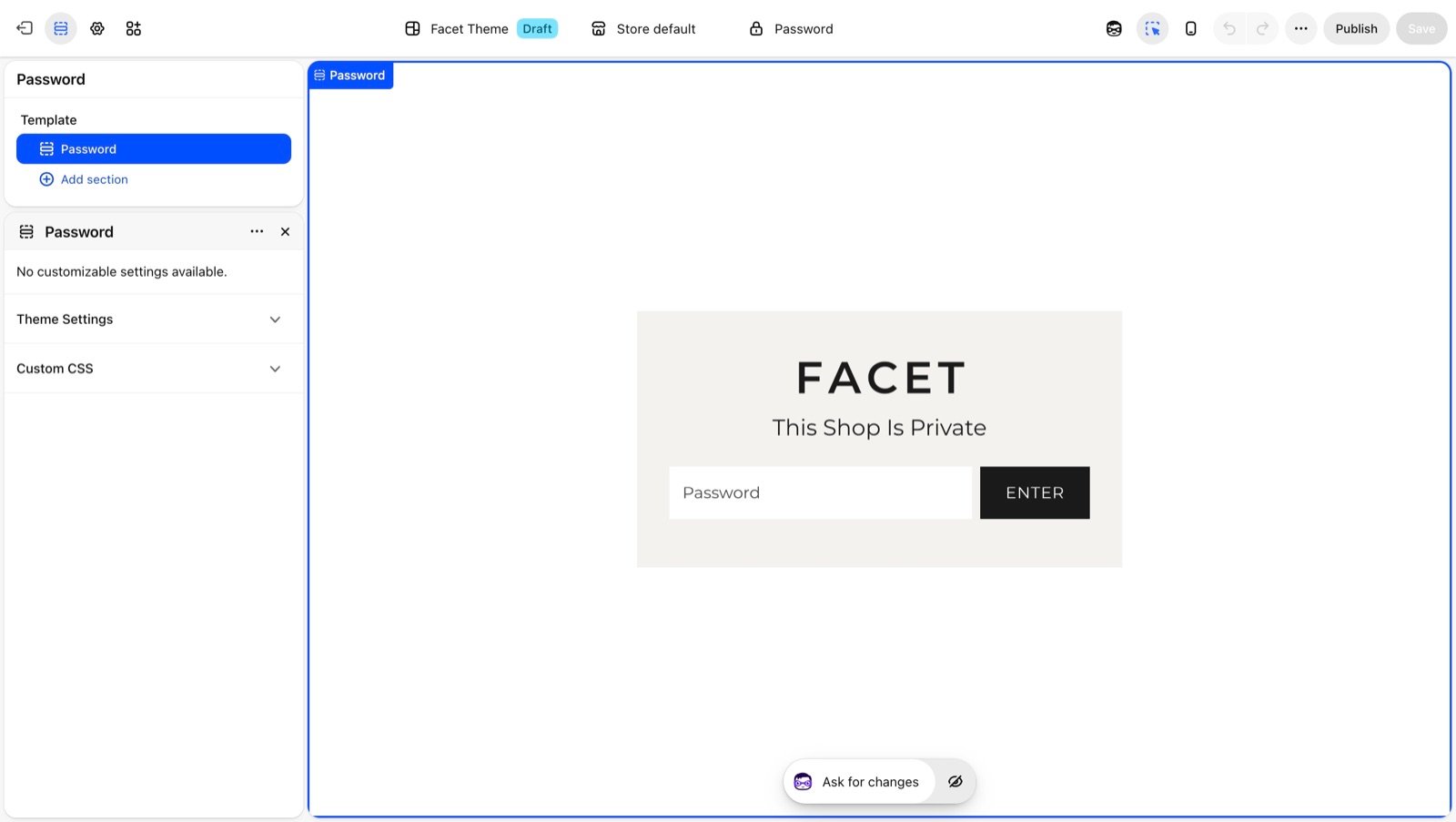
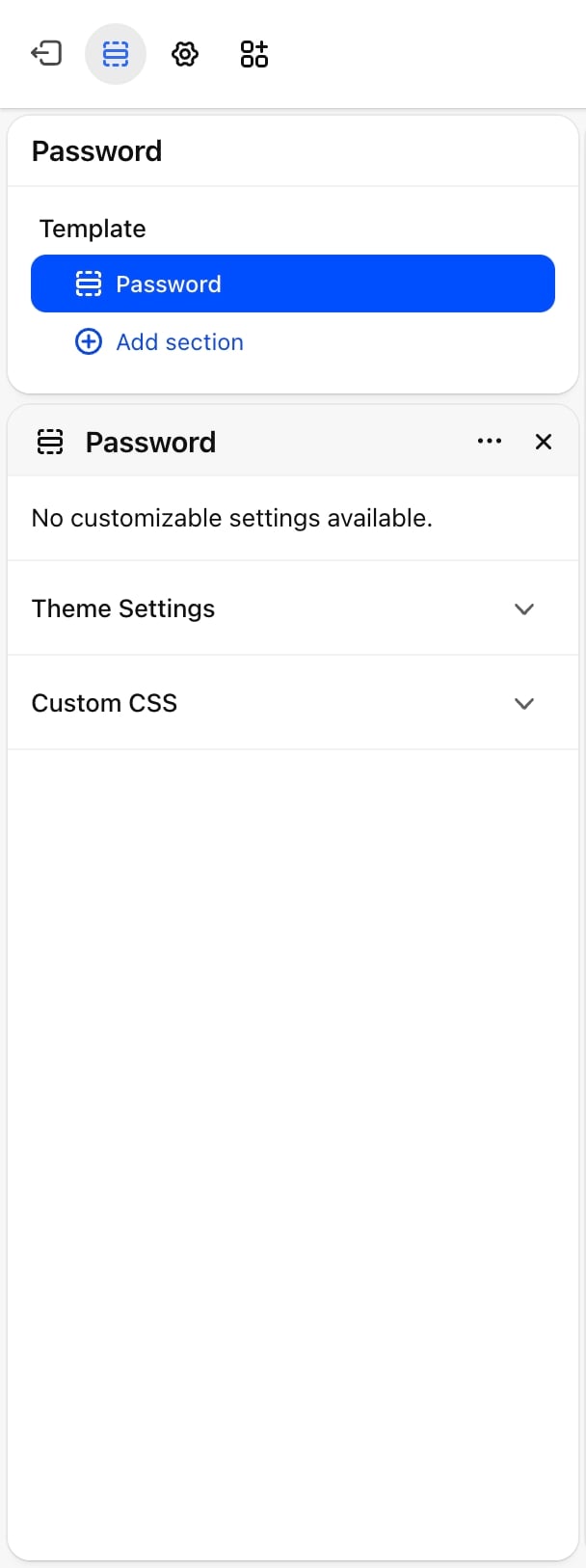
In the page selector at the top of the Customizer, choose Password to see the page as visitors will.
Stores on a free trial can’t remove the password until they pick a paid plan.
Best practices
- Tell visitors when you open. A date or a season in the message answers the first question they have.
- Upload a logo. The logo makes a locked store look intentional rather than unfinished.
- Share the password with testers only. Anyone with the password sees the full store, including prices.
Related guides
Logo
Set the logo shown on the password page.
Introduction
Get to know Facet before you open your store.