


What this section controls
- Whether the content sits in a row or in a column on large screens.
- An optional picture on the left, on the right or behind the content.
- A countdown timer to a date and time you choose.
- What shoppers see when the countdown ends.
Getting started
1
Open the Theme Customizer
In your Shopify admin, open Online Store, then Themes, and click Customize next to Facet.
2
Add the section
In the Sections panel, click Add section and choose Promotion banner. It comes with a Heading, Text, Countdown timer and Button. It can’t be added to the header.
3
Set the end of your offer
Click the Countdown timer block and pick the Year, Month, Day, Hour and Minute your offer ends.
4
Link the button
Click the Button block and choose where it goes, for example your sale collection. A button without a link doesn’t show on your store.
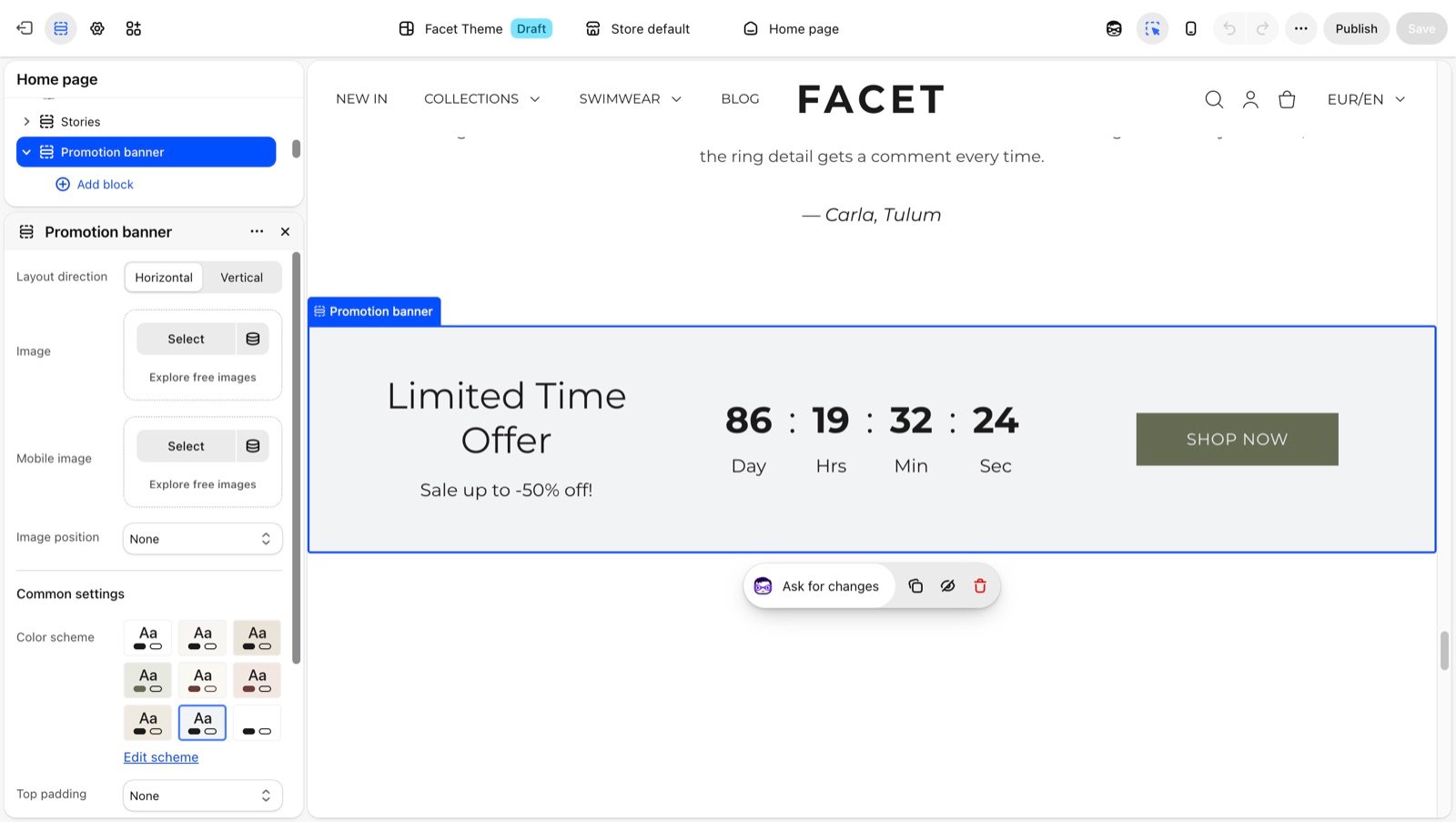
Section settings
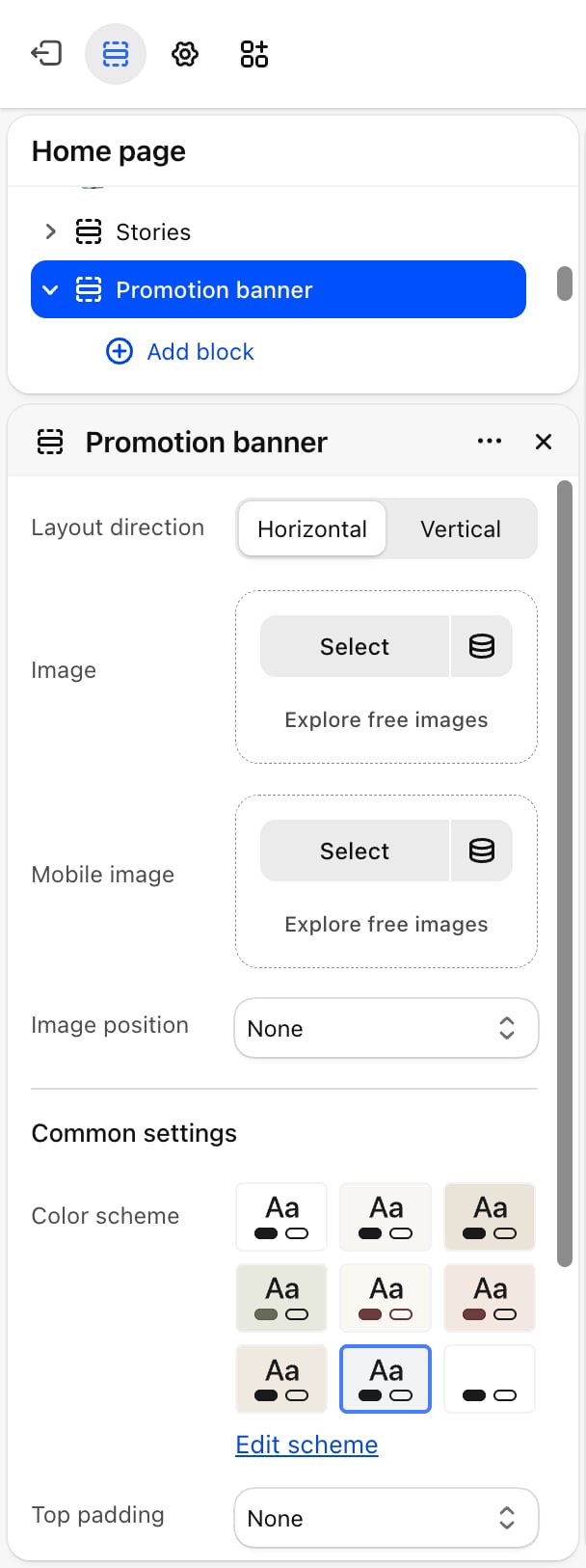
Layout direction
Layout direction
- Horizontal (default): on large screens the heading and text, the countdown and the button sit side by side in three columns. A picture on the left or right takes 40% of the width.
- Vertical: the blocks stack in a column. A picture on the left or right sits above the content in a 16:9 shape.
Image and Mobile image
Image and Mobile image
Image is the banner picture. Mobile image is an optional picture for phones. Without one, phones show Image. With Image position set to Left or Right and no picture picked, the Theme Customizer shows a placeholder beside the content, while your store shows the banner as text only. With Background and no picture, a placeholder fills the band.
Image position
Image position
- None: no picture is shown, even if you picked one.
- Left (default) or Right: the picture sits beside the content.
- Background: the picture fills the band behind the content.
Common settings
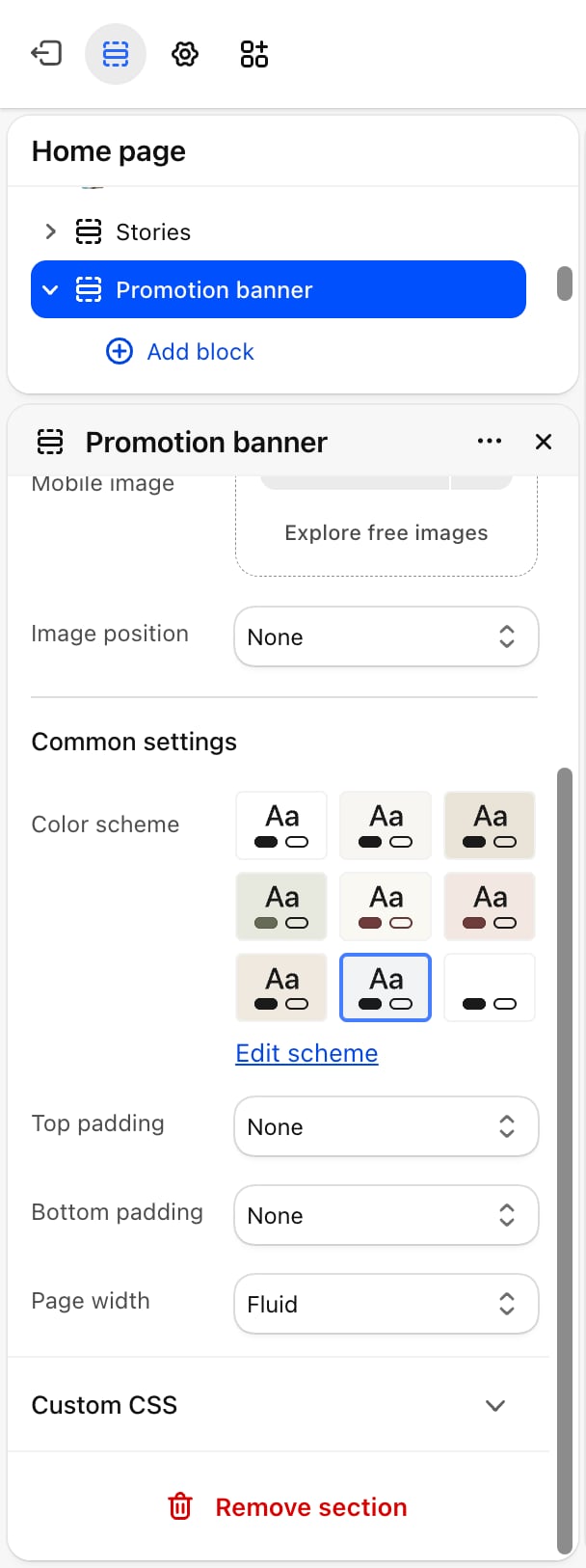
- Color scheme: the colors of the band.
- Top padding and Bottom padding: None (default), Small, Medium, Large or Extra large.
- Page width: Narrow, Narrower, Fluid (default) or Full.
Blocks
The promotion banner accepts Heading, Text and Button blocks. See Theme blocks for their settings.Countdown timer
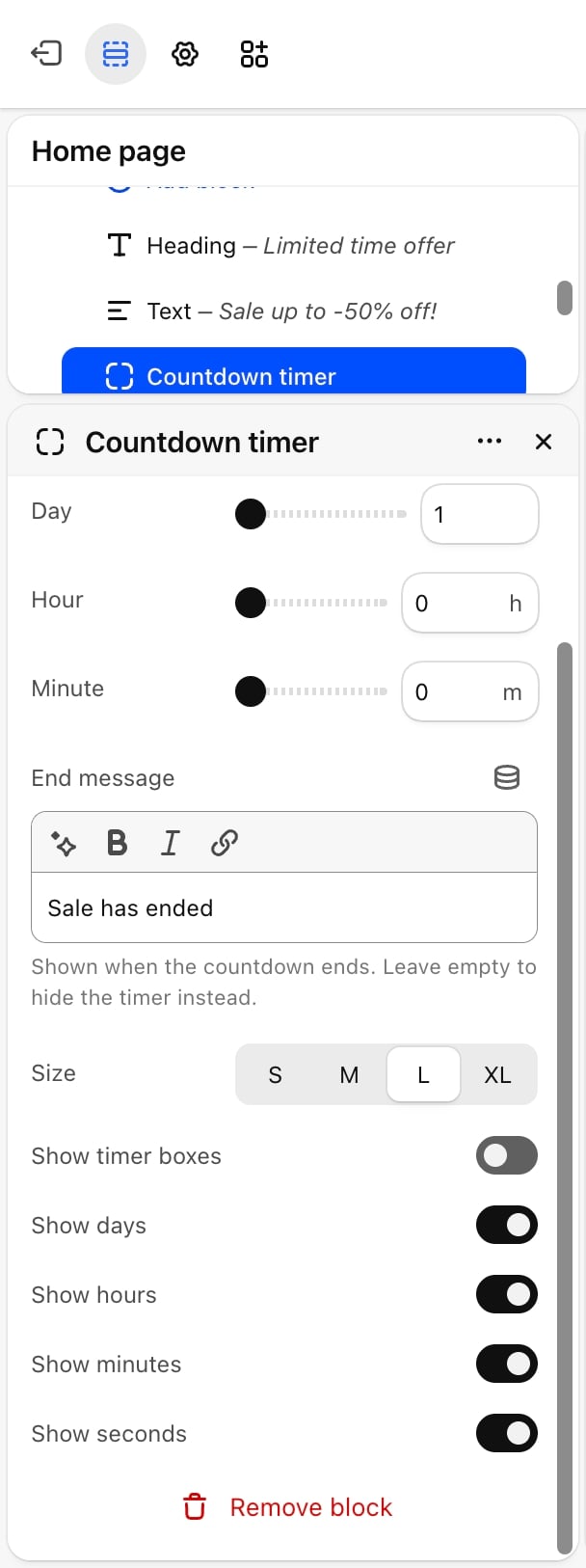
Counts down to the date and time you set, in your store’s time zone. It updates every second. The end time follows daylight saving time: an end date in summer is read as summer time even when you set it in winter.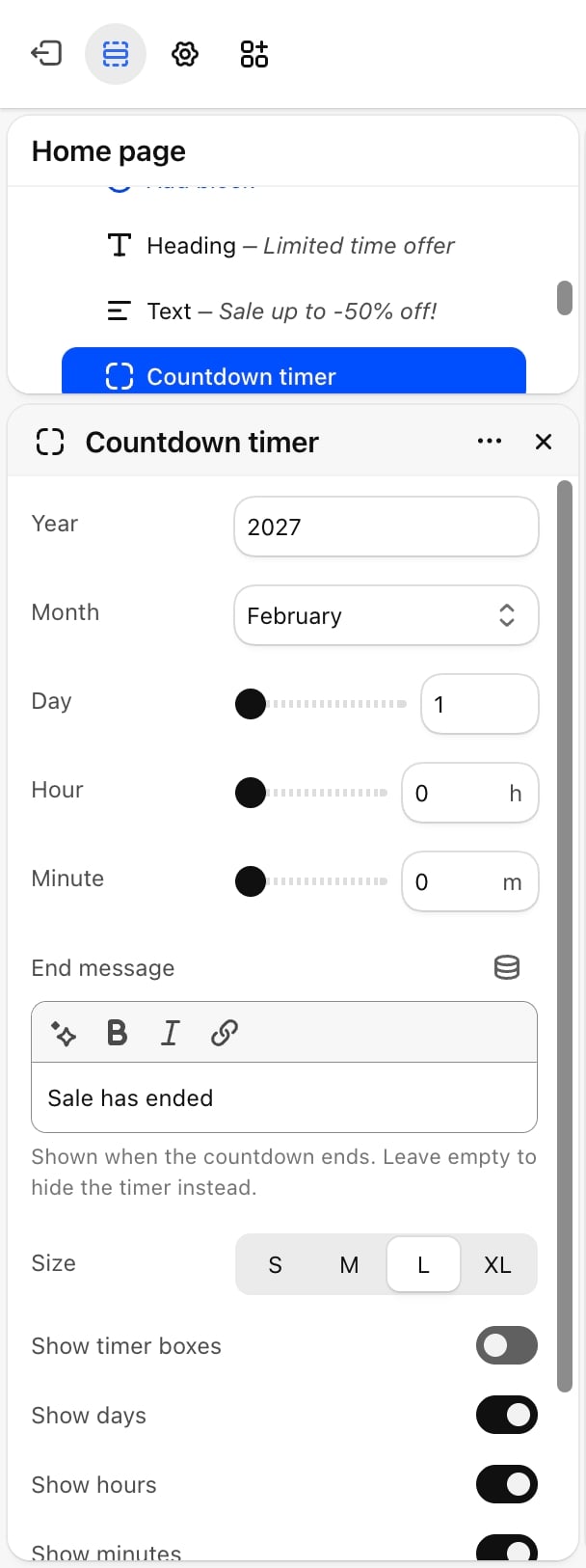
- End date
- When it ends
- Look
- Units
- Year: default 2027.
- Month: January (default) to December.
- Day: from 1 to 31. Default: 1. A day past the end of the month, such as 31 in April, counts down to the last day of that month instead.
- Hour: from 0 to 23. Default: 0.
- Minute: from 0 to 59. Default: 0.
Best practices
- Set the end time in your store’s time zone. The timer reads the date and time you enter as store time, so shoppers in other countries see the same deadline.
- Write an end message, or remove the section after the sale. With an end message, shoppers know the offer is over. Without one, the timer vanishes but the heading and button stay.
- Keep the heading short in the horizontal layout. The heading and text share one third of the width with the countdown and button beside them.
Related guides
Theme blocks
Settings for the heading, text and button blocks in this banner.
Promotional pop-up
Show your offer in a pop-up instead of a band.