

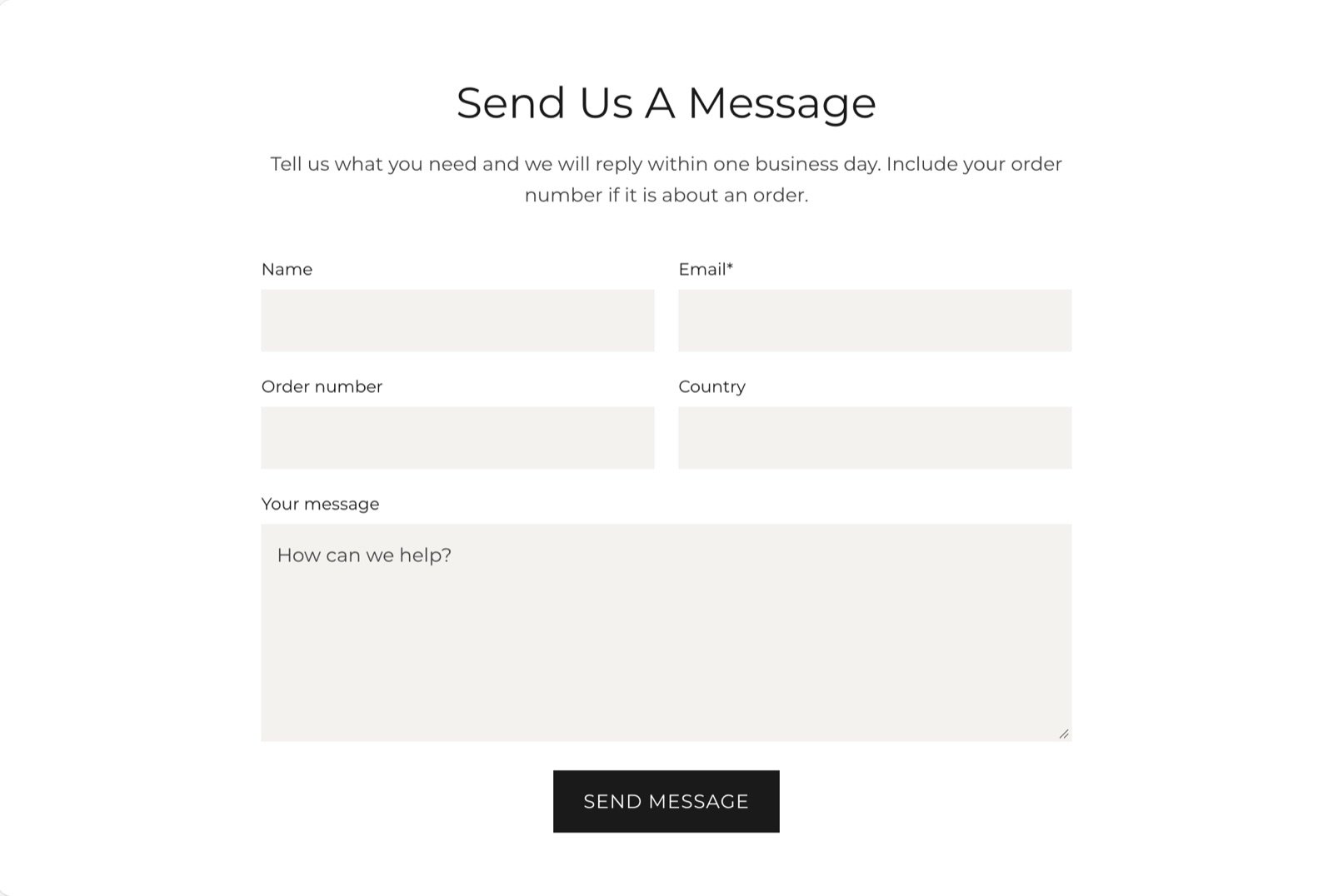
What this section controls
- The heading and text above the form.
- Which optional fields the form shows.
- The section colors, width and spacing.
Getting started
1
Open the Theme Customizer
In your Shopify admin, open Online Store, then Themes, and click Customize next to Facet.
2
Add the section
In the Sections panel, click Add section and choose Contact form. The section can’t be added to the header or footer.
3
Choose the fields
Click Contact form and turn the phone number, order number and country fields on or off.
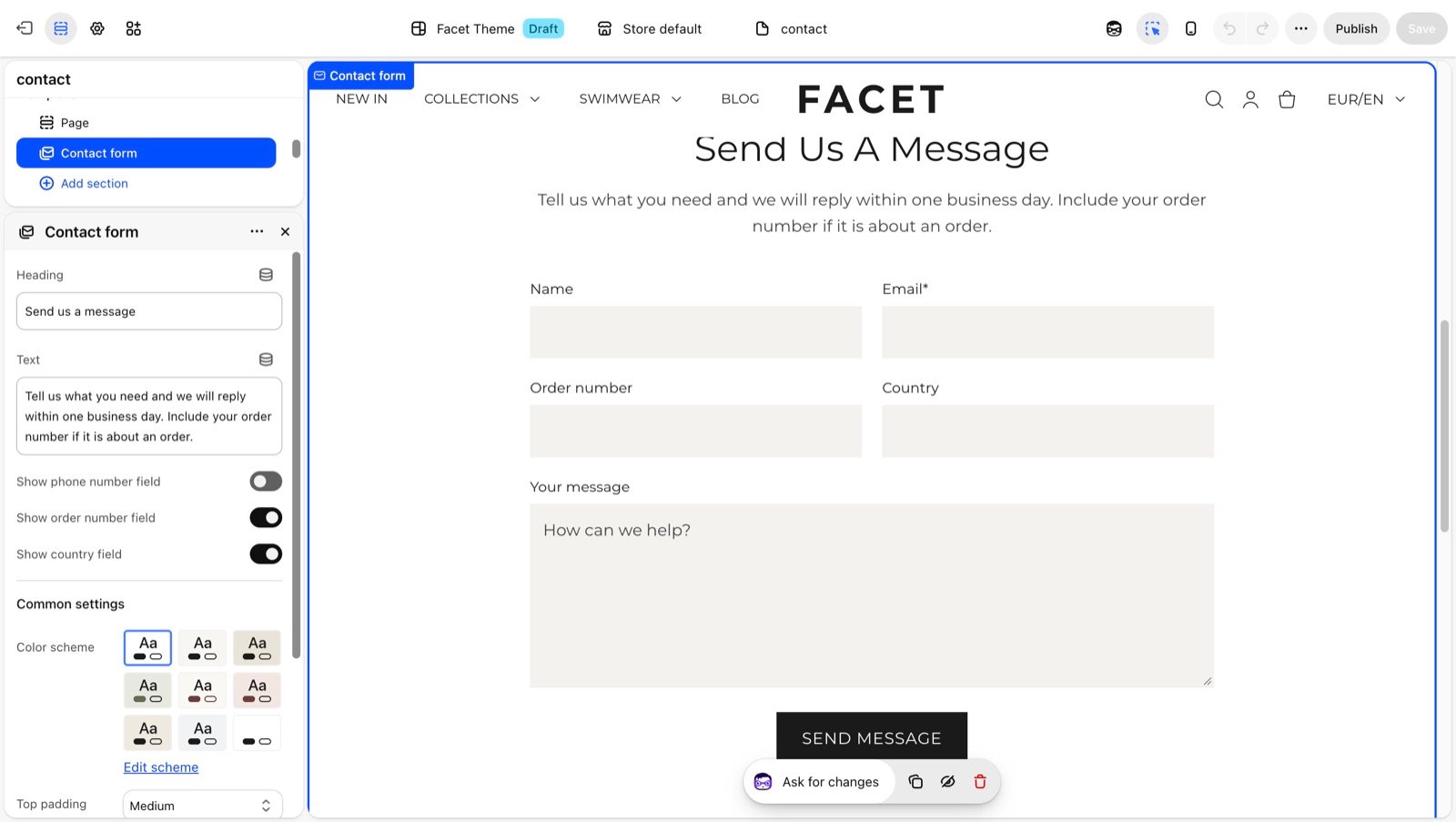
Section settings
Content
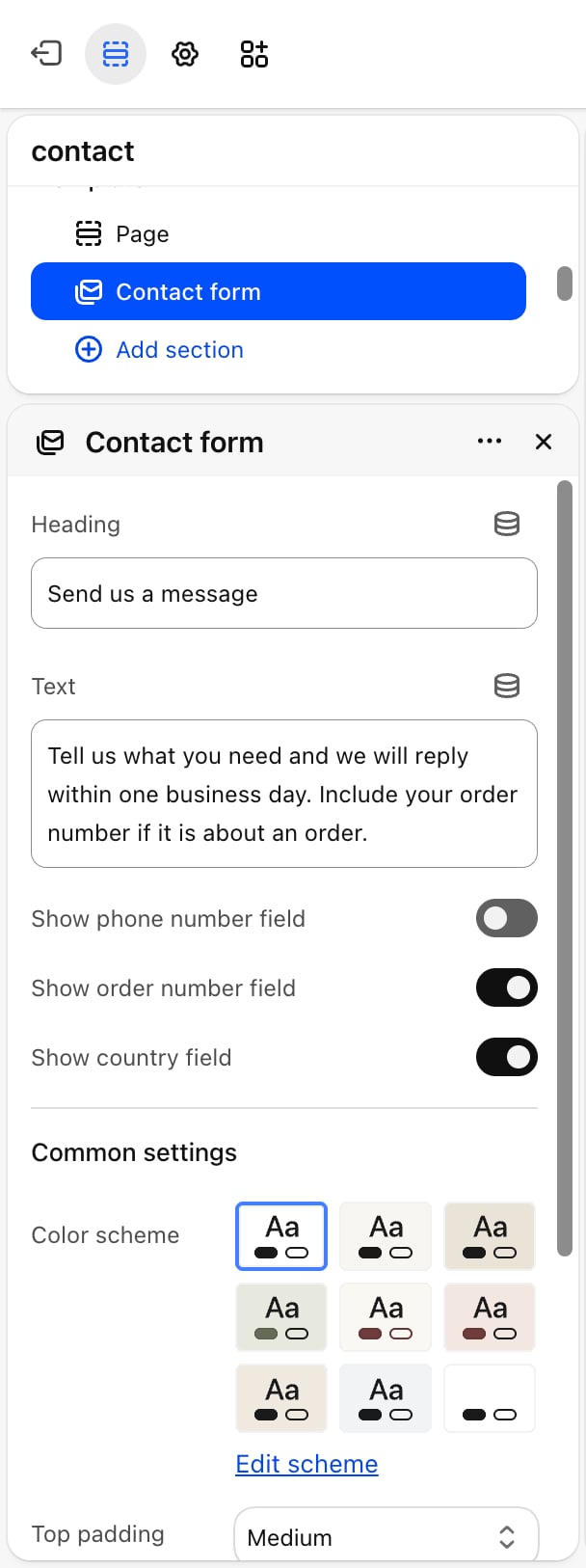
- Heading: the heading above the form. Default: “Send us a message”. Leave it blank to hide it.
- Text: a short line under the heading. Default: “Fill out the form below and our team will get back to you as soon as possible.” Leave it blank to hide it.
Form fields
The form always has Name, Email and Message fields. Email and Message are required.- Show phone number field: on by default.
- Show order number field: on by default.
- Show country field: on by default.
Common settings
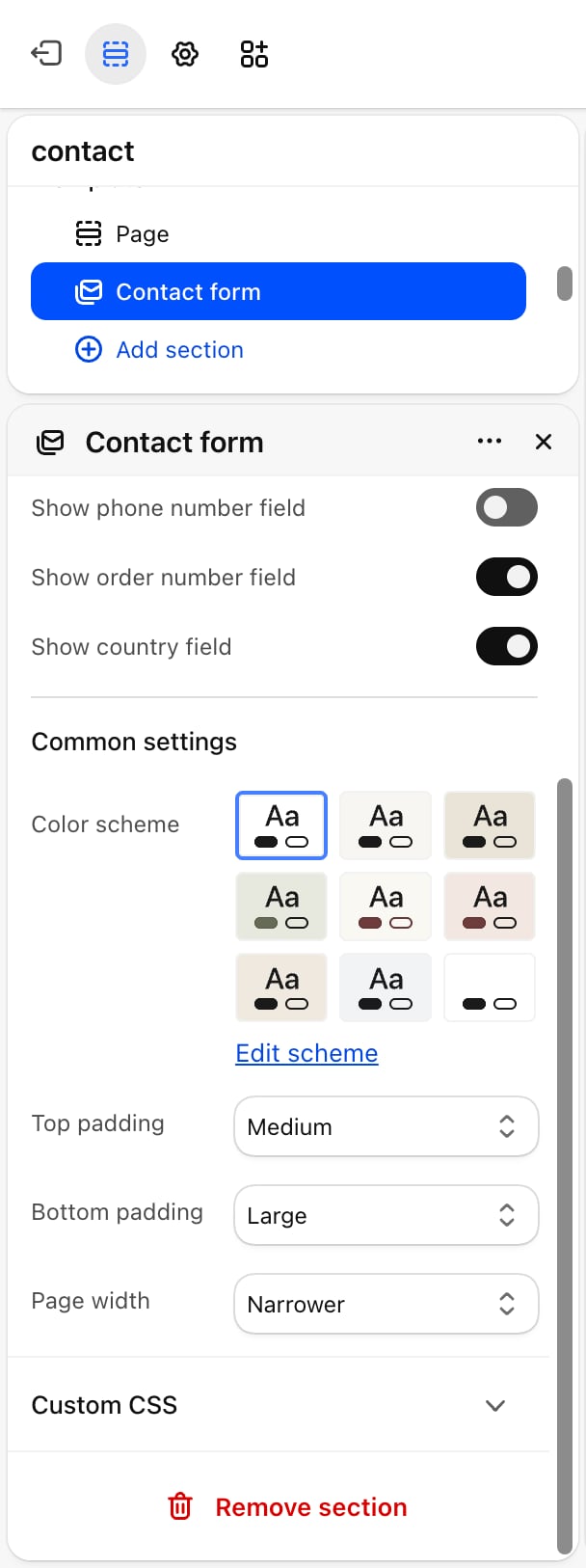
- Color scheme: the colors of the section. Form fields use the scheme’s surface colors.
- Top padding and Bottom padding: None, Small, Medium, Large (default) or Extra large.
- Page width: Narrow, Narrower (default), Fluid or Full.
After a shopper sends the form
Shopify emails the message to your store’s contact address, and the form shows a thank-you message. If a required field is missing, the form shows an error instead. When a shopper is signed in to their customer account, their name and email are filled in for them.Best practices
- Turn off fields you don’t use. Every extra field makes the form longer. Keep Show order number field on if most messages are about orders.
- Set expectations in the text. Say how soon you reply, for example “We answer within one working day.”
- Start from the contact template. Facet’s contact page template already includes this section, so assign that template to your contact page instead of building one from scratch.
Related guides
Contact page
Set up the store’s contact page template.
Colors
Set the surface colors used by form fields.